⏱️ Reading time: 13 min
You coded a shortcut with Ctrl+S, and on Mac your user presses Cmd+S and nothing happens: that silent bug shows up in almost any web editor that doesn’t distinguish between platforms. Keyboard shortcuts aren’t just a preference of each operating system, but a set of names, physical keys, and event properties that change between Windows, macOS, and Linux, and that your code has to handle explicitly.
📑 En este artículo
- TL;DR
- What Are Keyboard Shortcuts?
- Why It Matters
- How Key Mapping Works Across Systems
- Practical Examples of Keyboard Handling in JavaScript
- How to Start Testing Shortcuts in Your Browser
- Real-World Use Cases
- Common Mistakes and Best Practices
- Key Comparison Between Windows, Mac, and Linux
- Going Deeper: key vs code, Dead Keys, and IME
- Frequently Asked Questions
- Why don’t key combinations like Ctrl+V work the same way on Mac?
- What’s the difference between event.key and event.code in a keyboard shortcut?
- How do I detect whether the user is on Mac or Windows from JavaScript?
- Do keyboard shortcuts work the same on Linux as on Windows?
- What is the Globe/Fn key on Apple keyboards?
- Why does Backspace behave differently on Mac and Windows?
- References
This guide covers those differences from scratch: which key does what on each system, how JavaScript sees them through KeyboardEvent, and how to write a function that works the same way no matter where your application runs.
TL;DR
- metaKey is triggered by Cmd on Mac and ctrlKey by Control on Windows: they’re two different properties of the same event.
- Backspace on Windows is equivalent to Delete on Mac, and Delete on Windows is equivalent to Forward Delete on Mac.
- event.code identifies the physical key regardless of the keyboard language; event.key changes depending on the layout.
- Fn+Return simulates the numeric Enter key on MacBooks that don’t have that physical key.
- Cmd+Q, Cmd+Tab, and Ctrl+Alt+Delete never reach JavaScript because the operating system intercepts them first.
What Are Keyboard Shortcuts?
Keyboard shortcuts are combinations of a modifier key (Ctrl, Alt, or Cmd) and a main key that trigger an action in an application. On the web there’s no single universal combination: Windows, macOS, and Linux assign different names and functions to keys like Control, Alt, or Delete.
The root cause is historical. Apple designed its keyboard around the Command key (⌘) to avoid clashing with the shortcuts the system reserved for itself, while Windows inherited the Control convention from Unix and DOS terminals. Decades later, neither layout is more correct than the other: they’re two different solutions to the same problem of reserving keys for the operating system.
Why It Matters
For a developer who’s never touched cross-platform code, this might sound like a cosmetic detail, but it isn’t. An application that only checks event.ctrlKey completely ignores Mac users, because on that system the real modifier is Cmd and Control is barely used outside the terminal. Poorly implemented keyboard shortcuts generate support tickets, negative reviews, and, in collaborative apps like text editors or spreadsheets, loss of trust: the user assumes their Cmd+Z didn’t undo anything, when in reality the event never fired at all.
There’s also an accessibility argument. Users who rely on screen readers or adapted keyboards navigate entire applications without a mouse, so every broken key combination is, for them, a function that simply doesn’t exist on that platform.
How Key Mapping Works Across Systems
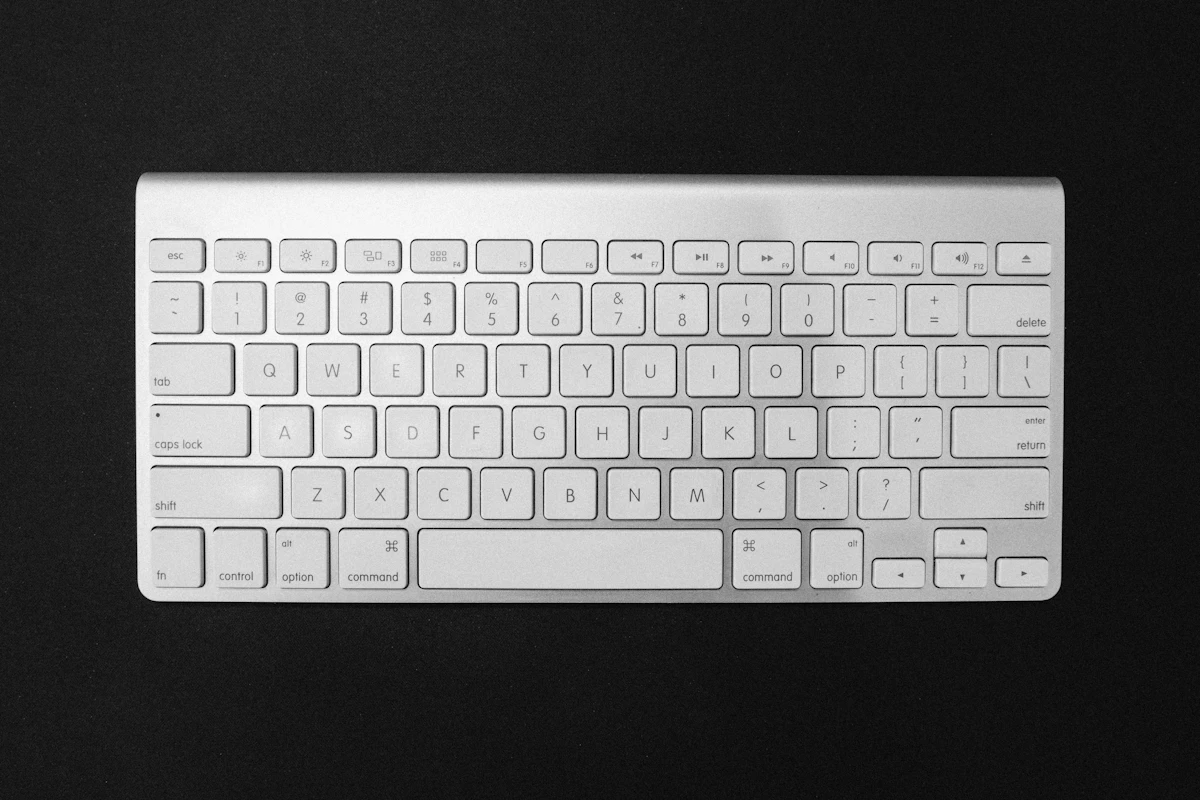
Windows offers three modifiers for applications: Ctrl, Alt, and Shift. macOS offers four: Cmd (⌘), Option (⌥), Control (⌃), and Shift (⇧), plus the Globe/Fn key that the operating system reserves for itself. That fourth key gives Mac apps an extra modifier: many programs use Option for variants of a shortcut, for example Option+arrow to move by word instead of by character.
The names also change. What Windows calls Backspace, macOS calls Delete; what Windows calls Delete, macOS calls Forward Delete. Simply saying “press Delete” in a user guide is ambiguous unless you specify the platform. Something similar happens with Enter: Windows has a single Enter key, but Mac distinguishes between Return (the main key) and Enter (a secondary key that only exists on keyboards with a numeric keypad). In most Mac software both do the same thing, except for exceptions like Photoshop, where Return adds a line break and Enter confirms the action.
For the browser, each key produces a KeyboardEvent object with several relevant properties: key (the character or logical name, affected by the layout), code (the physical position of the key, the same across any layout), and the booleans ctrlKey, metaKey, altKey, and shiftKey, which indicate which modifiers were pressed at that instant. The diagram below summarizes how that information travels from the moment the user presses a key until your code receives it.
sequenceDiagram
    participant U as User
    participant T as Keyboard
    participant N as Browser
    U->>T: presses Cmd+K
    T->>N: sends keydown
    N->>N: reads metaKey and key
    N-->>U: executes the shortcut
The key piece for cross-platform keyboard handling is metaKey. On Windows and Linux, metaKey corresponds to the Windows or Super key and almost no app uses it; on Mac, metaKey is Cmd, the modifier users expect for almost everything. That’s why the standard convention in shortcut libraries is to treat “metaKey on Mac” and “ctrlKey on Windows/Linux” as the same logical modifier, usually called Mod or Primary.

Practical Examples of Keyboard Handling in JavaScript
Let’s see how all this translates into code, from the simplest case to one you could paste into a real project today.
First, detect which platform your app is running on:
function esMac() {
  return navigator.userAgentData
    ? navigator.userAgentData.platform === 'macOS'
    : /Mac/.test(navigator.platform);
}

console.log(esMac());
This function returns true on a Mac and false on Windows or Linux, using the modern userAgentData API when it exists and navigator.platform as a fallback in browsers that don’t implement it.
Now, let’s listen to what actually arrives in the event when someone presses a shortcut:
document.addEventListener('keydown', (event) => {
  console.log({
    key: event.key,
    code: event.code,
    ctrlKey: event.ctrlKey,
    metaKey: event.metaKey,
  });
});
When you press Cmd+K on Mac, the console prints literally:
{ key: "k", code: "KeyK", ctrlKey: false, metaKey: true }When you press Ctrl+K on Windows, the same function prints:
{ key: "k", code: "KeyK", ctrlKey: true, metaKey: false }The value of code doesn’t change between systems because it identifies the physical position of the key; what changes is which boolean gets triggered. From that difference, we can build a real shortcut function:
function esAtajoPrimario(event, letra) {
  const modificador = event.metaKey || event.ctrlKey;
  return modificador && event.key.toLowerCase() === letra;
}

document.addEventListener('keydown', (event) => {
  if (esAtajoPrimario(event, 's')) {
    event.preventDefault();
    guardarDocumento();
  }
});
This function treats Cmd (Mac) and Ctrl (Windows/Linux) as the same logical modifier, the standard pattern for implementing something like “Save” with a single block of code instead of branching by platform on every shortcut.
flowchart TD
    A["User presses a key"] --> B{"Is event.metaKey true?"}
    B -->|"Yes"| C["Treat as Mod (Mac)"]
    B -->|"No"| D{"Is event.ctrlKey true?"}
    D -->|"Yes"| E["Treat as Mod (Windows/Linux)"]
    C --> F["Compare event.key with the shortcut"]
    E --> F
💡 Tip: useevent.codeinstead ofevent.keywhen the shortcut depends on the physical position of the key, like in games with WASD, becauseevent.codedoesn’t change with the keyboard language whileevent.keydoes.
How to Start Testing Shortcuts in Your Browser
You don’t need to install anything to experiment with this. Open your browser’s developer tools (F12 on Windows and Linux, Cmd+Option+I on Mac), go to the Console tab, paste the keydown listener from the previous section, and press Enter.
With the listener active, click anywhere on the page so it has focus and try different combinations: Ctrl+K, Cmd+K, Alt+Arrow, Option+Arrow. Each keystroke prints an object in the console with the exact values of key, code, ctrlKey, and metaKey for that key on your system, which you can compare directly against the examples in this article.
Real-World Use Cases
Web editors like those of Google Docs or Notion implement their own shortcut normalization layer: internally they translate “Mod+B” to Cmd+B on Mac and Ctrl+B on Windows before registering the listener, instead of writing each combination twice. The most widely used frontend shortcut libraries (Mousetrap, hotkeys-js) follow the same principle with a “mod” alias that resolves at runtime based on the detected platform.
In browser video games the problem is different: what matters there is the physical position of the keyboard, not the character. A game that maps WASD using event.key breaks on a French AZERTY keyboard, because on that layout the physical keys W, A, S, and D produce the characters Z, Q, S, and D. Using event.code (“KeyW”, “KeyA”, etc.) solves this because it identifies the physical key, not the printed symbol.
In banking applications or forms with strict validation, keyboard handling also defines legal accessibility: a user who navigates with the keyboard alone needs Tab, Shift+Tab, and Enter to work predictably on any platform, without losing focus when switching from Windows to Mac.
Common Mistakes and Best Practices
The most common mistake is checking only event.ctrlKey and assuming it covers all users; on Mac that leaves out anyone using Cmd, which is the expected modifier there. The solution is to always combine metaKey || ctrlKey for the primary modifier, unless you have an explicit reason to distinguish between them.
Another mistake is assuming all keyboards are English QWERTY. Latin American Spanish layouts use dead keys for accents: pressing ´ followed by “a” composes an á, and during that process the browser fires composition events instead of a normal keydown with the final letter. A shortcut that listens to every keydown without checking event.isComposing can trigger unwanted actions while the user is still typing an accent.
It’s also common to forget that certain combinations are reserved by the operating system and will never reach your code, no matter how well the listener is written.
⚠️ Heads up: you can’t intercept Cmd+Q, Cmd+Tab, or Ctrl+Alt+Delete from JavaScript: the operating system captures them before they reach the browser, so any shortcut that depends on those combinations will never work on the web.
Key Comparison Between Windows, Mac, and Linux
The table below summarizes the most relevant equivalences for anyone writing cross-platform code.
| Windows / Linux | macOS | What it does |
|---|---|---|
| Ctrl | Cmd (⌘) | Primary modifier for application shortcuts |
| Alt | Option (⌥) | Secondary modifier, shortcut variants |
| (Windows key) | Globe/Fn | Reserved by the operating system |
| Backspace | Delete | Deletes the character before the cursor |
| Delete | Forward Delete (full-size keyboards only) | Deletes the character after the cursor |
| Enter | Return | Confirms, submits, or adds a new line |
| (no direct equivalent) | Numeric Enter (⌤, numeric keypad only) | Secondary action in apps like Photoshop |
Going Deeper: key vs code, Dead Keys, and IME
The difference between event.key and event.code is what confuses newcomers to this topic the most. key is the logical value after applying the layout: on a Spanish keyboard, the physical key next to Enter produces “ñ” as key, but its code is always the same physical identifier across any layout. For application shortcuts (Save, Copy, Find) it’s best to use key, because the user expects the letter printed on their keyboard to trigger the action. For game controls or fixed positions it’s best to use code, because it doesn’t depend on the language.
Dead keys complicate this even further on Latin American keyboards. When typing á, é, or ñ using a dead key, the browser may fire composition events (compositionstart, compositionupdate, compositionend) instead of, or in addition to, normal keydown events, depending on the browser and operating system. The same thing happens on a larger scale with input methods (IME) used to type Chinese, Japanese, or Korean, where a long sequence of keystrokes translates into a single final character. The event.isComposing property lets your code ignore those intermediate events and react only once composition has finished.
To debug the exact state of lock keys like Caps Lock, the KeyboardEvent getModifierState() method returns whether a specific modifier is active at the moment of the event, useful for cases like warning a user that Caps Lock is on while typing a password.
Your next step: paste the keydown listener from the examples section into your browser’s console, turn on Caps Lock, and compare what changes in the object printed by getModifierState('CapsLock') versus event.key.
Frequently Asked Questions
Why don’t key combinations like Ctrl+V work the same way on Mac?
Because on Mac the expected modifier for pasting is Cmd, not Control. The keyboard event exposes this as metaKey instead of ctrlKey, so code that only checks ctrlKey never detects Cmd+V on a Mac.
What’s the difference between event.key and event.code in a keyboard shortcut?
event.key depends on the keyboard layout and language; event.code identifies the physical position of the key regardless of what character it prints. For application shortcuts it’s usually best to use key, and for game controls or fixed positions it’s best to use code.
How do I detect whether the user is on Mac or Windows from JavaScript?
With navigator.userAgentData.platform on modern browsers, or with navigator.platform as a fallback compatible with older browsers, checking whether the value contains “Mac”.
Do keyboard shortcuts work the same on Linux as on Windows?
Almost always, because Linux also uses ctrlKey as the primary modifier and shares most key names with Windows. Differences mostly appear in specific desktop environments that reassign global system shortcuts.
What is the Globe/Fn key on Apple keyboards?
It’s a key reserved by macOS for system functions, like switching the input language or opening the emoji panel. Web applications can’t read it or use it as their own modifier.
Why does Backspace behave differently on Mac and Windows?
It’s not that it behaves differently: it’s that Mac gives that behavior (deleting backward) to a key it calls Delete, while Windows reserves the name Delete for the key that deletes forward, the one Mac calls Forward Delete.
References
- Unsung (Marcin Wichary): the original article with an exhaustive breakdown of key names and symbols between Windows and Mac.
- MDN Web Docs: official documentation for the KeyboardEvent interface and its properties.
- MDN Web Docs: list of standard values for the key property, including getModifierState().
- Wikipedia: history and general definition of modifier keys across different systems.
📱 Like this content? Follow @programacion on Telegram for daily tech content in Spanish: quick summaries, fresh content every day.
Featured image: Foto de Zulfugar Karimov en Unsplash
Did it work for you? Got a different error? Say so below: questions get answered and help the next reader.
Leave a comment



0 Comments